job-scheduling

How to Automate Job Scheduling for Field Teams?

A dispatcher juggling twenty technicians on a whiteboard is one sick call away from chaos. Jobs get missed, techs drive in circles, and customers wait longer than they should.

Automating job scheduling fixes this problem at the root. It puts the right person on the right job, at the right time, without anyone picking up the phone five times an hour.

This guide walks through what automated scheduling really means, how to set it up, and what changes once it’s running.

Why Manual Scheduling Breaks Down

Spreadsheets and whiteboards work fine when a team has three or four techs. Past that point, the cracks start to show.

A dispatcher has to hold too much in their head at once: who’s free, who’s closest, who has the right skill, and who already has six jobs stacked up. Mistakes creep in, and they cost money.

Here’s where manual scheduling usually falls apart:

  • Double-booked technicians because two people updated the schedule at the same time.
  • Jobs assigned to a tech who is 40 minutes away when someone closer was free.
  • No visibility into which jobs are running late until a customer calls to complain.
  • Skill mismatches, like sending a general tech to a job that needs a specialist.
  • Lost time re-confirming details over the phone instead of sending them automatically.

None of this is anyone’s fault. It’s simply too much information for one person to track by hand once the team grows.

What Automated Job Scheduling Actually Means

Automated scheduling doesn’t mean a computer takes over completely and nobody has a say. Automate job scheduling software handles the matching and busywork, while your team keeps final control.

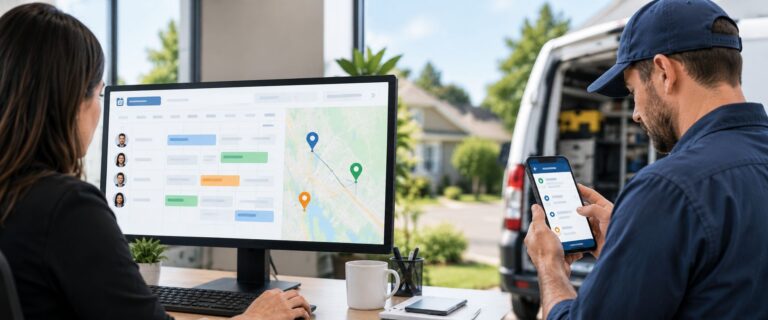
In practice, the system looks at a set of factors every time a new job comes in: technician location, current workload, skill level, branch, and availability. It then narrows the field down to the best candidates and either assigns the job automatically or hands the dispatcher a short list to choose from.

This is different from a digital calendar that just stores appointments. A true scheduling system actively sorts, filters, and recommends, so dispatchers spend their time on judgment calls instead of data entry.

Automated job scheduling for field teams

Also Read: Maximize Productivity with HVAC Job Scheduling Software

Core Features an Automated Scheduling System Needs

Not every scheduling tool does this well. Before choosing one, check that it covers these basics:

  • Skill-based matching: the system should know which techs are qualified for which job types, not just who’s free.
  • Location awareness: it should factor in where each technician is right now, not just their home base.
  • Drag-and-drop rescheduling: plans change, and moving a job should take one click, not a phone tree.
  • Multiple calendar views: a grid for quick moves, a map for routing, and a list for a long-range overview all serve different purposes.
  • Real-time status updates: the office should know when a job starts, finishes, or runs long, without calling the tech.
  • Mobile access for the field team: technicians need job details, customer history, and notes on their phone, not a printed sheet.
  • Automated notifications: texts, emails, or calls that go out the moment a schedule changes.

A system missing two or three of these will still leave gaps that someone has to fill by hand.

Steps to Automate Job Scheduling for Your Team

Getting from a whiteboard to an automated system doesn’t happen overnight, but the process is straightforward.

  • Map out your current process first: Write down how jobs get booked, assigned, and closed today. This shows you exactly where the bottlenecks are before you try to fix them.
  • Set up technician profiles: Each tech should be tagged with their skills, branch, certifications, and typical availability. The system can only make good matches if this data is accurate.
  • Define your assignment rules: Decide what matters most for your business, whether that’s closest location, highest skill match, or lowest current workload, and let the software apply those rules automatically.
  • Turn on automatic notifications: Once a job is assigned, both the customer and the technician should get the details without anyone dialing a phone.
  • Run parallel for a short period: Keep the old process as a backup for a week or two while the team gets comfortable with the new one.
  • Review the data monthly: Look at drive times, first-time fix rates, and job completion times to see what’s improving and what still needs adjusting.

Following these steps in order keeps the rollout manageable, even for a team that’s never used scheduling software before.

Related: Simplify Service Scheduling with Smart Scheduling Tools For Better Service

What Changes Once Scheduling Is Automated

Once a system takes over the matching and notifying, the day-to-day shifts in a few clear ways:

  • Dispatchers spend less time on the phone and more time solving actual problems.
  • Technicians spend less time driving and more time on billable work.
  • Customers get accurate arrival windows instead of vague estimates.
  • Managers can see, at a glance, which jobs are on track and which need attention.
  • First-time fix rates tend to rise because the right tech shows up with the right skills the first time.

None of this requires replacing your team. It just removes the guesswork that used to eat up their day.

How Field Force Tracker Helps Automate Job Scheduling for Field Teams

Field Force Tracker has spent over 17 years building software specifically for field service businesses, and scheduling sits at the center of the platform.

How the Scheduling Engine Works

The system looks at job type, technician skill level, current location, branch, and department before recommending or auto-assigning a tech. For larger teams, it applies rule-based logic to sort through many possible candidates and picks the one that fits best. That’s something a manual process simply can’t do at scale.

What Dispatchers Get Access To

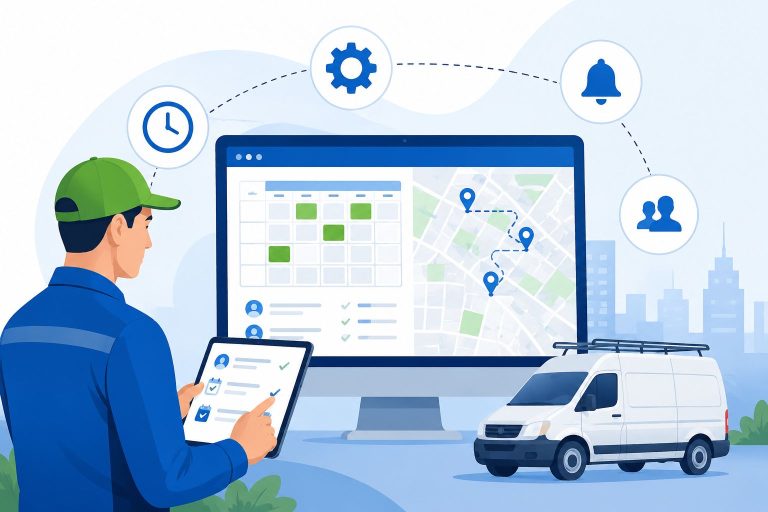
  • A drag-and-drop dispatch board with month, week, grid, map, and list views
  • Real-time job status, including start and stop times
  • Color-coded jobs for priority and quick visual sorting
  • Built-in phone, email, and SMS communication with technicians
  • Route optimization and live GPS tracking

Also Read: Take Control of Service Business with Advanced Job Tracking and Management

Who Uses It

Field Force Tracker is used by service businesses in more than 30 countries, across trades like HVAC, plumbing, electrical, fire alarm and security, elevator maintenance, and office equipment repair.

The company reports that businesses using its scheduling tools see first-time fix rates improve and average repair time drop by at least 20%, along with fewer scheduling conflicts as team size grows.

The platform also connects to accounting tools like QuickBooks, Xero, and Sage, so scheduling data flows straight into billing without extra manual entry.

Manual scheduling works until it doesn’t, and for most growing field teams, that point arrives sooner than expected. Automating the process doesn’t remove your dispatcher’s judgment. It gives them better information to use it with.

The businesses that make this switch early tend to spend less time firefighting and more time actually growing. If your team is still running on a whiteboard or a shared spreadsheet, that’s usually the clearest sign it’s time to look at a dedicated scheduling system.